Monday, January 28, 2013

Share Win7 64-bit printer to Windows XP 32-bit machine

Here are the steps:

1. Share the printer on Windows 7 machine.
2. Go to "Add Printer Wizard" on Windows XP machine and click Next.
3. Select "Local printer attached to this computer and then Next.
4. Select "Create a new port, then choose Local Port in the Type of Port.
5.Enter a port name: \\Win7Machine\SharedPrinterName.


Tuesday, October 4, 2011

“Error while unpacking program, Code 2. Please report to author” error when launching or installing a Nuance product."


This is an article I have copied from Nuance website since I always encountered this in our clients which are using MS Vista. So for me to remember and easy to find, I'm putting this on this blog.


Problem:
When launching or installing a Nuance Desktop product on a Windows Vista Operating System, the following error may appear:
Error while unpacking program, Code 2. Please report to author
Note: This error may occur when using the following Nuance software:
  • Dragon NaturallySpeaking
  • PDF Converter Professional
  • PDF Converter
  • PDF Create
  • OmniPage
  • PaperPort

Cause:
Microsoft released a new security update for Windows Vista on July 11, 2011 (KB2533623) that has caused problems with certain software.  Problems that may occur include not being able to launch or install certain third party applications on Microsoft Windows Vista. 

Solution:
We are aware of this issue and are currently working with Microsoft to resolve the problem.  Until this issue is resolved, the only way to continue using the Nuance application is to remove the specific Microsoft update. 
To remove this KB2533623 Windows Update, follow the steps below:
  1. Click "Start > Control Panel > Programs and Features".
  2. Click the "View installed updates" link on the left side of the window.
  3. Locate the "Update for Windows Vista for x64-based Systems (KB2533623)" update.
  4. Select the KB2533623 update and then click the "Uninstall" button.
  5. Once the update has been removed, restart the computer.
  6. After the computer restarts, confirm that the Nuance Desktop application can now be launched or installed.

Monday, October 3, 2011

Cannot open your default e-mail folders.

I'm having this problem for two days. One of the users in the remote site cannot use her Outlook 2007 and she's getting this error message in the PC that she's using. She's connected to the MS Exchange 2007 located in the main site through VPN. By the way, VPN connection is connected perfectly. I connected to her system by means of a remote software. Her Outlook is completely appearing disconnected. It seems that the Exchange Server cannot resolve the username of that use.So I decided to go to the remote office and setup 
her email on my laptop but is running smoothly. I configured it easily without experiencing any problem.

So I created a new profile for the Outlook and I get this error:


"Cannot open your default e-mail folders. The file C:\Documents and Settings\USERNAME.DOMAIN\
Local Settings\Application Data\Microsoft\Outlook\outlook.ost cannot be accessed. You must connect to your Microsoft Exchange Server computer at least once before you can use your offline folder file."


To fix this problem, here are the steps that I took:
1. Open Control Panel - Mail
2. Create a new profile
3. Specify the Microsoft Exchange server or the FQDN
4. Put the username or the name of the user 
5. Dont click on the check name tab, instead go to More Settings >Security  and put the tick mark on encryption and click Apply.
6. Now you can click on the "Check Name" and now it will resolve the name.

Hope this helps!
Good luck!


Monday, September 26, 2011

Leased Line Configuration- Cisco 2900 Series Router

One of our clients decided to upgrade their Leased Line connection from 2Mbps to 8Mbps and bought Cisco 2900 Series Integrated Services Router. I was asked to configure which in the beginning I had some troubles in the configuration but later on, I finally made it working.

Below are the commands and configurations I had gone through to make it work.


*Setting up hostname and DHCP server
Router> en
Router#conf t
Router(config)# hostname HOTEL
HOTEL(config)#ip dhcp pool mypool
HOTEL(dhcp-config)#network 192.168.2.0 255.255.255.0
HOTEL(dhcp-config)#dns-server 213.42.20.20 195.22.241.222
HOTEL(dhcp-config)#default-router 192.168.2.1
HOTEL(dhcp-config)#ip name-server 213.42.20.20
HOTEL(dhcp-config)# exit


*Configure GigabitEthernet 0/0 for connection to the ISP public address which they  subscribed
HOTEL#conf t
HOTEL(config)# int GigabitEthernet 0/0
HOTEL(config-if)#ip add 83.111.95.77 255.255.255.252
HOTEL(config-if)#no shut
HOTEL(config-if)# ip nat outside
HOTEL(config-if)#exit


*Configure GigabitEthernet 0/1 for your LAN
HOTEL#conf t
HOTEL(config)# int GigabitEthernet 0/1
HOTEL(config-if)#ip add 192.168.2.1 255.255.255.0
HOTEL(config-if)#no shut
HOTEL(config-if)#ip nat inside
HOTEL(config-if)#exit
HOTEL(config)#


*Configure the Access-list
HOTEL(config)#ip nat inside source list 100 interface GigabitEthernet0/0 overload
HOTEL(config)#access-list 100 permit ip any any
HOTEL(config)#ip route 0.0.0.0 0.0.0.0 83.111.95.77
HOTEL(config)#exit
HOTEL#copy run start  <--- Save the configuration. Don't ever forget this command.

Goodluck!


Sunday, June 19, 2011

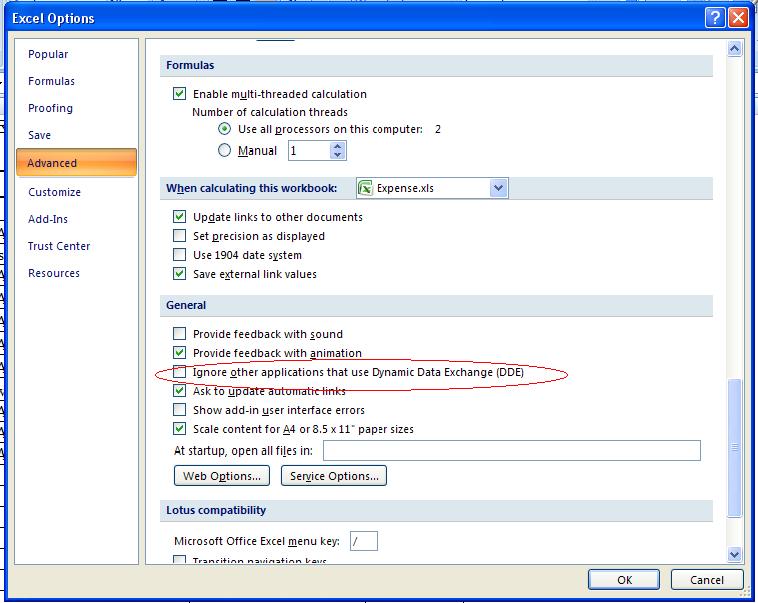
Cannot Open MS Excel file by double-clicking on it (MS Excel 2007)

One of our managers is always getting this error when double-clicking an Excel file or opening it in the Recent Documents:

"Cannot find the file C:\ My Documents\file.xlsx (or one of this components). Make sure the path and filename are correct and that all required libraries are available."

I tried to re-install MS Office but it didn't work. I searched in Google and found this solution:

Steps:
1. Open MS Excel 2007.
2. Click on the Office Button in the upper left part of the Excel window.It looks like this:


3. Click on Excel Options then Advanced.
4. Look for General category.
5. Remove the check mark on "Ignore other applications that use Dynamic Data Exchange (DDE)".


6. Close MS Excel application and now you can open any Excel file by double-clicking on it.


Wednesday, May 4, 2011

Cannot start Microsoft Office Outlook. Cannot Open the Outlook Window

I encountered this problem when CEO of one of our client companies complained that he cannot work properly because of this. At first, I tried to do with System Restore because I thought that it will solve the issue. After restarting, it's still the same. I thought of reinstalling MS Office applications but I had a doubt that it will fix the problem. I search in Google for the possible solutions but most of them didn't work except for this one:

Steps:
1. Go to Start--Run
2. Type outlook.exe /resetnavpane

Then the Outlook will open just fine. 

This is what this /resetnavpane do: It clears and regenerates the Navigation Pane for the current profile. It's like deleting your profilename.xml in your user directory. This command applies to MS Outlook 2003, 2007 and 2010.

Wednesday, September 1, 2010

"The name could not be resolved. The connection to MS Exchange server is unavailable, outlook must be online or connected to complete this action"

I experienced this issue when setting up new email account in Outlook 2007 with MS Exchange 2007. I've been searching from the internet for quite some time to solve this issue. I tried many recommended solutions from IT experts but those solutions didn't work. So isolate the issue and finally solved it.
Here's how I solved it.

Firstly,I tried to new "New Mailbox" for another user for the sake of testing. But when I'm done creating this new mailbox, there is an error message saying:

Summary: 1 items. 0 succeeded, 1 failed.

Elapsed time: 00:00:01


Administrator
Failed

Error:


An Exchange 2007 server on which an address list service is active cannot be found.

Management Shell command attempted:


Enable-Mailbox -Identity:'TEST.dk/Users/Administrator' -Alias:'Administrator' -Database:'CN=Mailbox Database,CN=First Storage Group,CN=InformationStore,CN=TEST-NT-EXC2007,CN=Servers,CN=Exchange Administrative Group (FYDIBOHF23SPDLT),CN=Administrative Groups,CN=Demo,CN=Microsoft Exchange,CN=Services,CN=Configuration,DC=TEST,DC=dk'

Elapsed Time: 00:00:01

Checking the server's "Services", I found out that Microsoft Exchange System Attendant service is not started maybe due to unexpected shutdown of the server.

Here are the steps I went through:
1. In MS Exchange server, go to START-> RUN, then type services.msc.
2. Look for Microsoft Exchange System Attendant service then start it.
3. After that, I was able to create user account and finally connected to the Exchange server.

This solution worked for me, and I hope it will work for you as well, if not let me know.

Cheers!


Thursday, August 12, 2010

How to Configure Cisco Router?

I've received  a lot of emails requesting me to show how to configure Cisco router. I will show here the steps on how to configure 3 routers connected to each other. There are so many simulators available in internet like Packet Tracer by Cisco, GNS3, Boson, etc. Now I will be using Packet Tracer from Cisco. This is a user friendly simulator. I have been using this since 2005 when I first started studying CCNA, and also used it during my CCNA certification review, it helps me a lot. Then when I took CCNP exam, I both used GNS3 and Cisco Packet Tracer.


From the diagram, our goal is for PC0 to access or have connection to PC2 using ip route.

 
Here we go:

@ Philippines

Router>enable
Router#configure terminal
Router(config)#hostname Philippines
Philippines(config)#interface f0/0
Philippines(config-if)#ip address 192.168.1.1 255.255.255.0
Philippines(config-if)#no shutdown
Philippines(config-if)#interface s0/1/1
Philippines(config-if)#ip address 192.168.3.1 255.255.255.252
Philippines(config-if)#clock rate 64000
Philippines(config-if)#no shutdown
Philippines(config-if)#exit
Philippines(config)#ip route 192.168.5.0 255.255.255.0 192.168.3.2
Philippines(config)#ip route 192.168.9.0 255.255.255.0 192.168.3.2
Philippines#copy running-config startup-config


@USA
Router>enable
Router#configure terminal
Router(config)#hostname USA
USA(config)#interface f0/0
USA(config-if)#ip address 192.168.5.1 255.255.255.0
USA(config-if)#no shutdown
USA(config-if)#interface s0/1/0
USA(config-if)#ip address 192.168.3.2 255.255.255.252
USA(config-if)#no shutdown
USA(config-if)#interface s0/1/1
USA(config-if)#ip address 192.168.7.1 255.255.255.252
USA(config-if)#no shutdown
USA(config-if)#exit
USA(config)#ip route 192.168.1.0 255.255.255.0 192.168.3.1
USA(config)#ip route 192.168.9.0 255.255.255.0 192.168.7.2
USA#copy running-config startup-config


@Singapore
Router>enable
Router#configure terminal
Router(config)#hostname Singapore
Singapore(config)#interface f0/0
Singapore(config-if)#ip address 192.168.9.1 255.255.255.0
Singapore(config-if)#no shutdown
Singapore(config-if)#interface s0/1/1
Singapore(config-if)#ip address 192.168.7.2 255.255.255.252
Singapore(config-if)#clock rate 64000
Singapore(config-if)#no shutdown
Singapore(config-if)#exit
Singapore(config)#ip route 192.168.5.0 255.255.255.0 192.168.7.1
Singapore(config)#ip route 192.168.1.0 255.255.255.0 192.168.7.1
Singapore#copy running-config startup-config


Tuesday, December 8, 2009

Basic Cisco Router Configuration Commands

Set a console password to cisco
Router(config)#line con 0
Router(config-line)#login
Router(config-line)#password cisco

Set a telnet password
Router(config)#line vty 0 4
Router(config-line)#login
Router(config-line)#password cisco

Stop console timing out
Router(config)#line con 0
Router(config-line)#exec-timeout 0 0
Set the enable password to cisco
Router(config)#enable password cisco

Set the enable secret password to certs.
This password overrides the enable password and is encypted within the config file
Router(config)#enable secret certs

Enable an interface
Router(config-if)#no shutdown

To disable an interface
Router(config-if)#shutdown

Set the clock rate for a router with a DCE cable to 64K
Router(config-if)clock rate 64000

Set a logical bandwidth assignment of 64K to the serial interface
Router(config-if)bandwidth 64
Note that the zeroes are not missing

To add an IP address to an interface
Router(config-if)#ip address 192.168.1.1 255.255.255.0

To enable RIP on all 192.168.x.y interfaces
Router(config)#router ripRouter(config-router)#network 192.168.0.0

Disable RIP
Router(config)#no router rip

To enable IRGP with a AS of 200, to all interfaces
Router(config)#router igrp 200
Router(config-router)#network 172.16.0.0

Disable IGRP
Router(config)#no router igrp 200

Static route the remote network is 172.16.1.0, with a mask of 255.255.255.0, the next hop is 172.16.2.1, at a cost of 5 hops
Router(config)#ip route 172.16.1.0 255.255.255.0 172.16.2.1 5

Disable CDP for the whole router
Router(config)#no cdp run

Enable CDP for the whole router
Router(config)#cdp runDisable CDP on an interface
Router(config-if)#no cdp enable

Cisco Modes of Operation

The Cisco IOS software provides access to several different command modes. Each command mode provides a different group of related commands.
For security purposes, the Cisco IOS software provides two levels of access to commands: user and privileged. The unprivileged user mode is called user EXEC mode. The privileged mode is called privileged EXEC mode and requires a password. The commands available in user EXEC mode are a subset of the commands available in privileged EXEC mode.
The following table describes some of the most commonly used modes, how to enter the modes, and the resulting prompts. The prompt helps you identify which mode you are in and, therefore, which commands are available to you.


User EXEC Mode:
When you are connected to the router, you are started in user EXEC mode. The user EXEC commands are a subset of the privileged EXEC commands.

Privileged EXEC Mode:
Privileged commands include the following:
• Configure – Changes the software configuration.
• Debug – Display process and hardware event messages.
• Setup – Enter configuration information at the prompts.

Enter the command disable to exit from the privileged EXEC mode and return to user EXEC mode.

Configuration Mode
Configuration mode has a set of submodes that you use for modifying interface settings, routing protocol settings, line settings, and so forth. Use caution with configuration mode because all changes you enter take effect immediately.

To enter configuration mode, enter the command configure terminal and exit by pressing Ctrl-Z.

Note: Almost every configuration command also has a no form. In general, use the no form to disable a feature or function. Use the command without the keyword no to re-enable a disabled feature or to enable a feature that is disabled by default. For example, IP routing is enabled by default. To disable IP routing, enter the no ip routing command and enter ip routing to re-enable it.

Tuesday, November 3, 2009

Resolution to my previous post: Only icons are visible after logging in to Windows Server 2003

Thanks to one of my friends who helped me resolved this problem. The reason for this problem is that the "Windows Standard" Color scheme and some other schemes in the Desktop properties were deleted. Maybe it was because of the Conficker virus or someone has accidentally deleted these schemes. Here are the steps I went through to solve this.

1. Since I could not see the text or the area where I point my mouse pointer because of the black screen, I right click on the Server's desktop and then press "R" on the keyboard(shortcut for Properties).
2. To go to the Appearance tab, where this Color scheme is located, I press Ctrl+Tab.
3. Pressing Alt+ C will lead you to the Color Scheme portion, then select the available color scheme in which you can read the text.
4. I choose "Maple" color scheme.
5. By clicking "Apply" button, you will be able to read all the texts and the screen and background are now seems back to normal mode.
6. Clicking "Advanced" button on the same "Appearance" menu will enable to set up Inactive Window, Active Window and Message Text settings. In the "Item" portion, I chose Desktop and in the "Color 1" portion, I chose color blue. All other portions like Size, Font and Color2 are disabled.
And viola, problem was solved.

See screenshot below for the solution:


Thanks also to all of you guys who suggested me some possible solutions to resolve this problem.

Kudos to you!

Saturday, October 10, 2009

Only icons are visible after logging in to Windows Server 2003


At first, this is the problem. The logon screen turns black after you press CTRL+ALT+DELETE to log on to a Microsoft Windows Server 2003-based computer.
I visit the Microsoft site to search which luckily i found the answer and the solution is the link below.

http://support.microsoft.com/kb/906510

But there's another problem. After logging in, all I can see are only icons in black screen with no labels/text in it. Even if I open Start Menu or My Computer, or any window, only icons are visible. It's weird, man and it is only the first time I encountered this kind of problem. The system is up and running. This is the application server and still, clients can connect to this server and can use the applications they needed.
Even if you will use RDP, this black screen with only icons you will see.

I think this is REGISTRY problem but what keeping me puzzled and think is that how can I edit the registry if I cannot see the text that I'm typing.

See the screenshots of the problem below:

Screenshot after pressing Start Menu


Screenshot after opening My Computer


I tried running the server in Safe Mode to check whether the screen is Normal but it was the same but it is not. It is also black screen with only icons in it.

I need it badly guys. Help me fix this problem. To all Microsoft expert out there help me fix this. What do you think guys is the problem of this and what is the solutions for this.

Any suggestions?

Thank you very much.

Tuesday, July 21, 2009

The Pipeline Story


Just want to share this very good story/video which you can follow if you want to become financially free.

"Rich people see opportunities. Poor people see obstacles. Rich people see potential growth. Poor people see potential loss. Rich people focus on rewards. Poor people focus on the risks." - T Harv Eker, author of Secrets of the Millionaire Mind

To know more about financial freedom and entrepreneurship, I would like to invite you to join our business community:

http://www.ca2020.net/

And then join our gatherings so you would learn how to get out of the rat race you are in.

Register and be part of our vision of a First World Philippines by year 2020.

We are looking for people who want to be educated and want to educate others about financial intelligence and personal growth.

See you!

Monday, July 13, 2009

How to remove double-spacing from your email signature in Microsoft Outlook

If your signature is double–line spaced and you want it single–line spaced, do the following:

1. Open MS Outlook.
2. On the Tools menu, click Options.
3. Click the Mail Format tab. Click Signatures.
4. In the Signature box, select the signature that you want to modify, and then click Edit.
5. Place the insertion point/cursor after the last character in the line.
6. Press DELETE, and then press SHIFT+ENTER.
7. Repeat Steps 5 and 6 for each line of text.
When you have finished with all lines, click OK three times.

Tuesday, July 7, 2009

A new version of JRE has been installed. Your browser needs to be restarted for these changes to take effect.

I got this error when I open Internet Explorer and enter the Contract Manager web address.Our client is just using this Primavera Expedition on their LAN. So when you enter even just the IP address of the Primavera Expedition server, you will get this error:

"A new version of JRE has been installed. Your browser needs to be restarted for these changes to take effect.

Please click OK to close the browser."

When you click the OK button, IE is automatically closed, and you cannot access your Contract Manager website at all. In some cased it will not close but it will ask you this question:
The webpage you are viewing is trying to close the windows. Do you want to close this window? If you click "Yes" it will close the browser. If "NO", you can enter in the Contract Manager's page but it will always ask you to do it over and over again which is very annoying in which there is a solution to this problem.

The problem is that your IE fails to install the new version of Java Plugin in your browser due to security reason, and Contract Manager doesn't need the new version of Java Applet at all, and it provides the supported JRE in your Contract Manager website for download. But the Java keeps checking the new version of JRE and tries to install in your machine when it's applicable.

Here is the solution:

1. Disable Java update checking:
a. Go to the Control Panel
b. Double-click Java (In X64-bit Windows, you need to select View x86 Control Panel Icons first), and open Java Control Panel dialog.
c. Then select the Update tab, uncheck the Check for updates automatically option.
d. Next select the Adavanced tab, expand the JRE Auto-download, select Never auto-download.
e. Finally, close Java Control Panel.

2. Remove unnecessary versions of JRE:
a. Go to the Windows Control Panel, open Add/remove programs, remove all the JRE versions that are newer than 6.0 version. Because if Contract Manager does not sees the JRE version needed, it will ask you to download from its site.

After the two steps above, restart your IE, you should be able to access your Contract Manager.

As of the moment(July 08, 2009), the recommended IE and Java versions for Primavera Expedition 12.1 are the following:
* Internet Explorer 7
* Java - JRE 1.6.0_03

You need to install the above versions to the client side and Primavera server. In addition to the server side, you need to install this:
* J2SE Development Kit 5.0 Update 13

Goodluck!

Thursday, June 25, 2009

Windows 7 Beta Shuts Down July 1

Microsoft wants those using the trial version of its next OS to switch to the Release Candidate.

News from informationweek.com
By Paul McDougall
InformationWeek

Microsoft (NSDQ: MSFT) is urging consumers who are using the beta version of its Windows 7 operating system to switch to the more fully developed Release Candidate as the Windows 7 Beta will enter its expiration period next week.

"Still on Windows 7 Beta? You need to move to the RC and fast," Microsoft's Stephen Rose said in a blog post Tuesday.

Users who continue with Windows 7 Beta beyond next week are in for a nasty surprise. "Starting July 1, the Beta will start to reboot every 2 hours and expire Aug 1st," wrote Rose. Microsoft will continue to offer Windows 7 RC as a free download until Aug. 15.

Windows 7 RC is close to the final version of Windows 7 that Microsoft plans to release on Oct. 22. Windows 7 RC will function until June 1, 2010.

Microsoft last week released a beta version of a toolkit for businesses mulling an upgrade of their desktop systems to the Windows 7 operating system.

Microsoft Assessment and Planning Toolkit version 4.0 is designed to analyze computers and other devices on a network to determine if they're compatible with Windows 7, Windows Server 2008, and other software products, including Microsoft Office 2007.

MAP also identifies candidates for virtualization, power-saving opportunities, and security vulnerabilities.

MAP can be downloaded from Microsoft's TechNet Web site. The company has not stated when a final version of the tool would be available.

Microsoft is counting on Windows 7 to erase memories of Vista, which flopped in the business market and drew numerous gripes from consumers. Complaints ranged from Vista's intrusive security measures to its heavy desktop footprint.

Windows 7 is said to be lighter and easier to use than its predecessor. It also includes slick new tools that improve everyday tasks such as desktop searches and PC-to-PC file transfers.

Thursday, May 14, 2009

What's new in Windows 7 RC

I've just downloaded Windows 7 RC(Release Candidate) on my PC and it took me less than 4 hours to download it. Its ISO image is about 275 MB size. I will try to install it so that I can check myself what's also new on this new Windows 7. If you want to know more information about this new version of Windows, click on the link below and also watch the embedded video.

http://www.microsoft.com/windows/windows-7/

Sunday, April 19, 2009

How to Manage Quota Messages

Check this link from Microsoft:

http://technet.microsoft.com/en-us/library/bb232089.aspx

Sender ID Framework SPF Record Wizard

Check this link:
http://www.microsoft.com/mscorp/safety/content/technologies/senderid/wizard/

Number of numbers in MIME From exceeds maximum threshold

I got this message when one of the users is trying to send an email to himself and the message bounced back. He cannot also send receive emails from the other users.

Resolution:

In the Exchange Management Console, you have to put the email address with your domain name and set this email as the default "Set As Reply". You have to put here also your Active Directory user account.

In the GFI MailEssentials Configuration, configure correctly POP3 Mailbox details like POP3 server(mail.emirates.net.ae); Login: xxxxx@xxxx.xx Password: xxxxxx.
In the Mail Delivery option: you have to put your Active Directory user account in the "Alternate Address for this mailbox" and select "Send mail to the alternate address".

Related Posts Plugin for WordPress, Blogger...
 

blogger templates | Make Money Online | nante aranda's random notes